

Blog

Holiday Hours
on Google: The 5 Minute Fix That Saves Angry Customers
Wrong holiday hours on Google cost you customers and
bring bad reviews. Set special hours for every
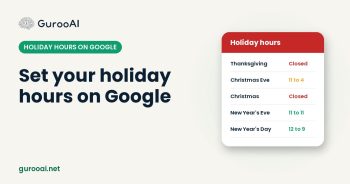
Holiday season is when wrong hours on Google hurt the most. We see it every year across the profiles we manage: a family drives over on Thanksgiving weekend, finds the door locked, and leaves a one star review before they even get back in the car. Meanwhile the competitor down the street had their holiday hours set, and got the visit.
This takes about five minutes per holiday. If your special hours are already set through New Year’s Day, you are ahead of most businesses and can skip this one.
Ask yourself
- Are you open, closed or on shorter hours for Thanksgiving, Christmas Eve, Christmas Day, New Year’s Eve and New Year’s Day?
- Does your Google profile say so today, or does it still show your regular hours for those days?
- If a customer checked Google right now for next Thursday, would they see the truth?
- Have you ever had a customer show up while you were closed, or call angry that Google was wrong?
If you are not sure, open Google Maps on your phone, search your business and look at the hours for an upcoming holiday. That is exactly what your customers see.
Why it matters more than you think
Hours are one of the first things people check before they drive over. When Google shows the wrong hours, you lose that customer and often gain a bad review. When your profile shows accurate special hours, customers trust it, and so does Google. An up to date profile is part of looking like an active, reliable business, which helps you stay visible when people nearby search.
There is also an upside. If you are open on a holiday when others are closed, accurate hours put you in front of every hungry or stranded customer searching that day.
The fix, in three steps
1. Set special hours for every holiday now
In your Google Business Profile, open the hours section and add special hours for each date. You can mark a day closed or set shorter hours. Do it for every holiday through New Year’s Day in one sitting, so you do not have to remember later.
2. Tell customers what is happening
Post a short update on your profile with your holiday schedule, plus any holiday specials, catering or gift cards you offer. Share the same post on Facebook and Instagram. It answers the question before people have to call.
3. Check it again the week before
Plans change. A few days before each holiday, look at your profile on your phone and confirm the hours are right. If Google asks you to confirm your hours, answer it. Then reply quickly to any review that mentions hours, thank the customer, and correct the record politely.
What one wrong day can cost
Say 15 people check your hours on a busy holiday weekend and a third of them give up because Google shows you closed when you are open. At a $45 average ticket, that is about $225 walking to a competitor in a single weekend, before counting the bad reviews that follow.
Your next step
If you want to handle this yourself, block ten minutes today and set every holiday through January 1. If you would rather never think about it again, GurooAI keeps your hours, posts and reviews up to date every week, holidays included.
Start with a free map audit to see what else on your profile could be costing you customers. If we do not think we can help, we will tell you. Prefer to talk it through? Call (980) 746-9959, option 4.